Scheduling lessons, group meetings and blocked time
Everything you can open in the calendar: a private lesson, a group event or personal blocked time.
Last updated: September 2026
- 1
Three actions in the calendar
Three buttons sit above the calendar: “Schedule lesson” for a private lesson, “Schedule group lesson” for a group event, and “Block time” for personal time when you are not teaching. Clicking an empty slot opens a shortcut to the same actions.
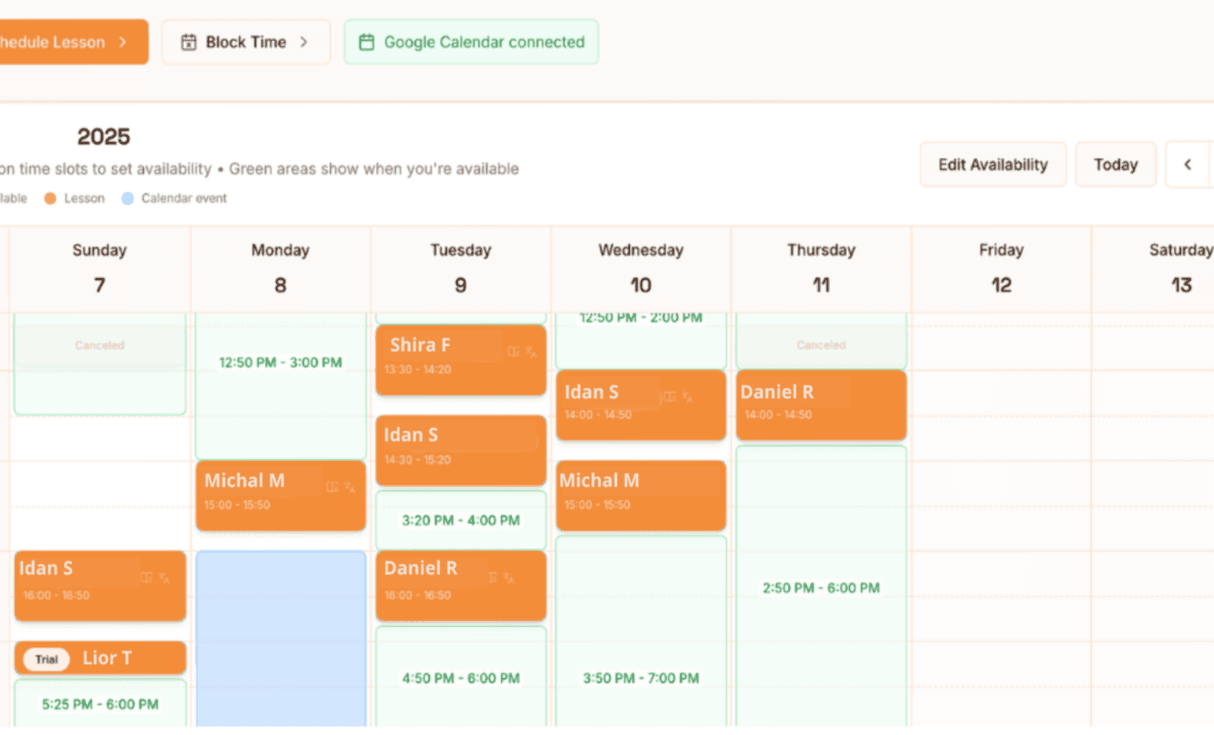
Green = hours you opened for students. Orange = a booked lesson. Marked = blocked time. - 2
Booking a private lesson
How to do it
- 1Select “Schedule lesson”, or click the slot you want in the calendar.
- 2Search for the student by name or email and select them from the list.
- 3Confirm the date and time and save. A lesson cannot be booked in the past.
- 4Once saved, a lesson link is created and the lesson also appears in the student’s calendar.
Hemy tip: A private lesson uses one credit from the student’s balance with you. Canceling the lesson returns it.
- 3
Opening a group event
How to do it
- 1Select “Schedule group lesson”, then choose the group, level and topic.
- 2Review the participant list; you can edit it before saving.
- 3Save. The meeting opens in the calendar and appears to students on the events page.
Hemy tip: Each active participant is charged one entry from their group balance. A participant without balance is skipped and the meeting still opens.
- 4
Blocking personal time
How to do it
- 1Select “Block time” and choose the slot, or use the quick options.
- 2You can mark it “All day”, set a custom end time and add a title such as “Personal time”.
- 3Save. Blocked time is not offered to students for booking.
Hemy tip: If Google Calendar is connected, lessons booked in Hemy are also created in your calendar with the video link.