For teachers
Availability and calendar management
Open teaching hours, view lessons and keep your calendar accurate.
Last updated: September 2026
- 1
What the calendar shows
The calendar shows a full week: green hours are the availability you opened to students, orange cards are booked lessons, and a trial lesson carries a “Trial” label. A canceled lesson stays marked so you can see what happened in that slot. Times follow the time zone in your account, and each student sees them in theirs.
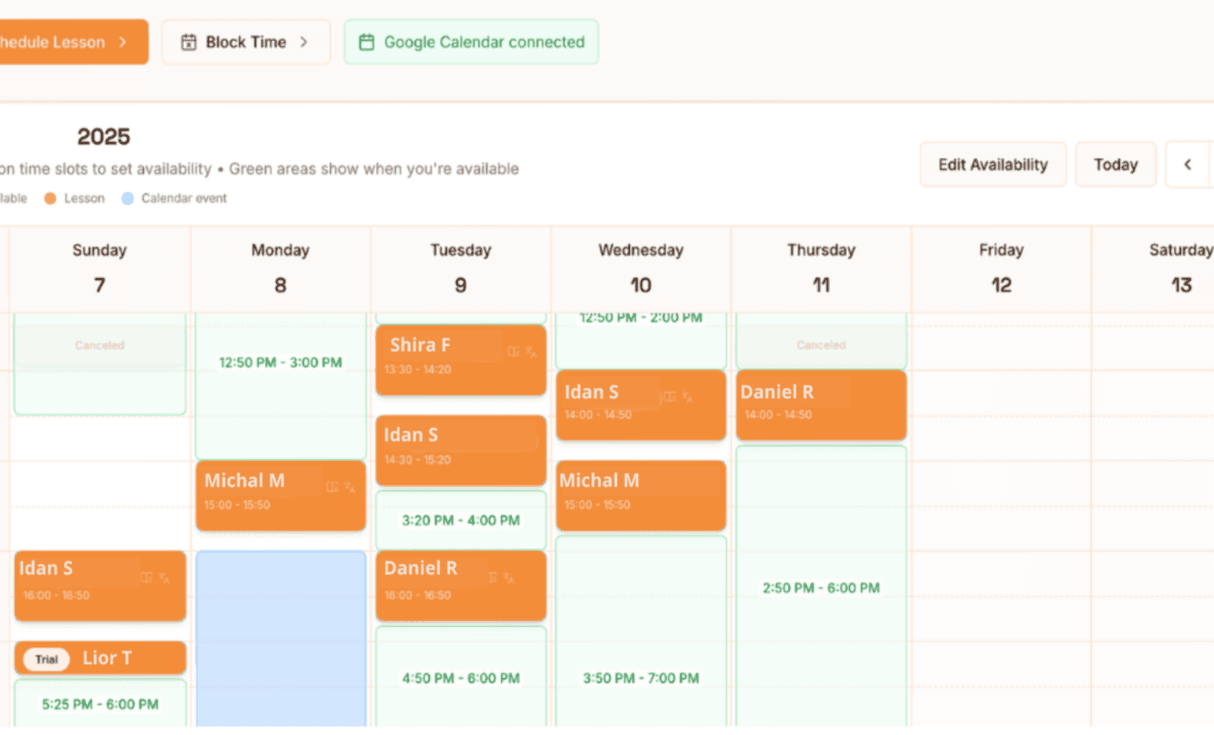
Green = hours you opened for students. Orange = a booked lesson. Marked = blocked time. - 2
Set your availability
How to do it
- 1Open Calendar in the teacher dashboard.
- 2Switch to availability editing and select your regular days and hours.
- 3Save the pattern and review the upcoming week.
- 3
Keep the calendar accurate
Remove availability when you cannot teach and review new bookings regularly. Each user sees times in their own time zone.
Hemy tip: Leave a short buffer between lessons for preparation and notes.